
 Support
 Login
Login

 English
 Svenska
 Norsk
Norsk Nederlands
Microsoft Calendar integration for digital signage

Display your Microsoft and Outlook calendars, meeting schedules and room bookings directly on your digital screens. With our integration, you easily connect your calendar through the Microsoft Graph API without needing to code. You decide which calendars to show and where they should appear.
Curious to know more? Book a demo, and we’ll tell you everything you need to know—and more.
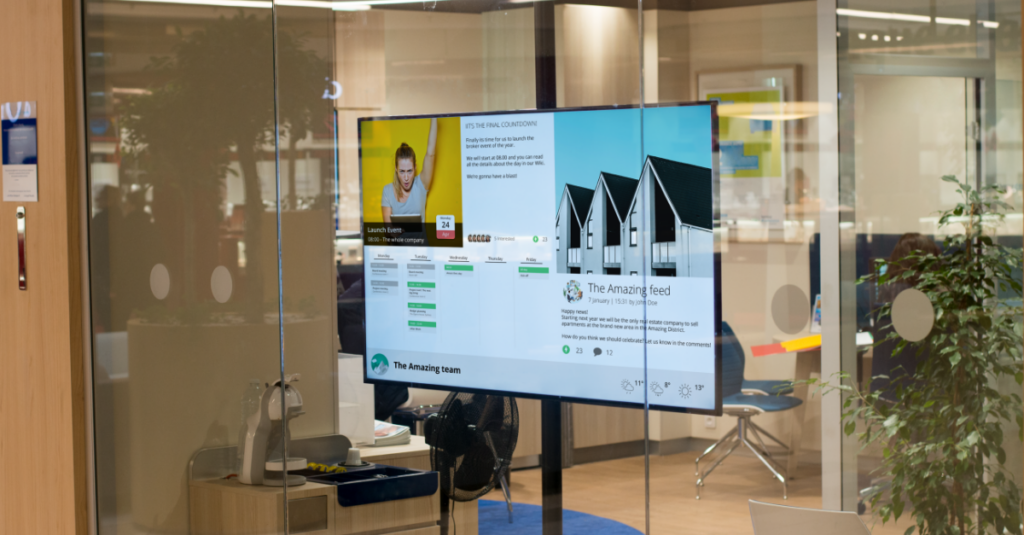
Make your calendar visible to everyone
Many important meetings and bookings are hidden in inboxes or systems that not everyone can access. By showing your Microsoft calendar on digital screens such as outside meeting rooms, in receptions or staff areas, everyone gets better visibility of what’s going on in real time without having to search for it.


What is Microsoft Calendar?
Microsoft Calendar is a digital calendar tool from Microsoft. It helps you plan and keep track of meetings, reminders, and events. You can easily invite others, sync with other apps, and have everything in one place – both on your computer and phone.
Show the calendar where it’s needed
Meeting room bookings, daily planning or internal reservations are often only visible in Outlook or Teams. By bringing this data onto screens, you give everyone a better overview and increase accessibility. Perfect for screens in entrances, outside meeting rooms or in open office spaces.
Why use this integration?

Everyone can see what is booked, what’s coming up and when rooms are available.

When the calendar is public, everyone in the organisation stays informed about resource use and meeting times.

All calendar changes appear on screen within seconds or minutes. No manual updates required.
What can you display?
- Bookings for specific meeting rooms
- Team calendars with daily or weekly schedules
- Personal calendars or shared resources


Common questions about Microsoft Calendar and digital signage
How do I display Microsoft Calendar on digital signage?
Log into PLAYipp with your Microsoft account and select the calendars you want to show. The calendar syncs automatically and is shown as a widget on the digital screens you select. No coding required – everything happens through a simple interface. Read more here.
How often is the calendar updated on screen?
The calendar updates automatically as soon as something changes. It typically takes 15 seconds to a few minutes. For extra reliability, the system also checks for updates every 20 minutes.
Can I display multiple Microsoft calendars on one screen?
Yup! You can show multiple calendars at the same time, such as personal calendars, meeting rooms or team calendars. You can combine them in the same view or use separate widgets depending on the layout you prefer.
Is the integration suitable for meeting room displays?
Yes, it’s perfect for that. You can display what’s currently booked, what’s coming next and when the room is free. Everything updates in real time. Read more about our meeting room displays.
Do I need IT skills to show the Microsoft calendar on screen?
Nope. Just log in with your Microsoft account in PLAYipp, choose your calendar and publish. You don’t need to understand APIs or have any technical knowledge. Read more here.
What permissions are required to display a Microsoft calendar on screen?
You need at least read access to the calendars you want to show. For some shared resources like meeting rooms, admin permissions might be needed. It can take up to one hour for new resources to appear after connecting the integration for the first time.
Read more on our Help Center.
 Login
Login